I rooted my Galaxy Tab S8+ to make it a reading tablet
My Tab S8+ had a locked bootloader and no usable conventional root path. DFRoot got me root, and an ADB setup turned it into an offline device for PDFs, ebooks and S Pen notes. This post covers what worked, what needed fixing and what the tablet still cannot do.
I wanted an e-reader for PDFs and books, with a pen for handwritten notes. The appeal was having a device I could pick up to read without ending up in a social app or watching a video.
Then I remembered that I already owned a Samsung Galaxy Tab S8+. It had a large screen and an S Pen. Before spending money on another tablet, I wanted to find out how close I could get with the one I had.
That turned into a project. I had to work around a locked bootloader with a kernel exploit, build a local book library and sort out several settings that fought each other. I worked through the ADB setup from my Mac with Codex. By the end, the tablet booted into an offline reading profile, opened my books from a plain launcher, and switched to smoother pen input when I opened Samsung Notes.
The usual root route was unavailable
My tablet is the Wi-Fi SM-X800, running Android 16 on firmware X800XXSBEZH3. The security patch level was August 5, 2026, and the kernel was in the Android 12 5.10 family.
I was looking for the usual route of unlocking the bootloader and patching a boot image. I did not have a usable unlock path on this firmware. Samsung does not provide a supported consumer rooting procedure for the tablet, and having an S8+ did not mean every guide for an earlier S8+ build applied to mine.
These checks helped establish what I was working with:
adb shell getprop ro.product.model
adb shell getprop ro.build.version.release
adb shell getprop ro.build.version.security_patch
adb shell getprop ro.bootloader
adb shell getprop ro.boot.flash.locked
adb shell getprop ro.boot.vbmeta.device_state
The bootloader checks returned 1 and locked. I needed a different way to get control of the running system.
Finding DFRoot
The route that worked was DFRoot, using version 4.6 with diabl0w’s Samsung KernelSU build.
DFRoot uses DirtyFrag, CVE-2026-43284, to modify kernel page-cache contents and load a kernel module without first unlocking the bootloader. KernelSU then provides the root permission manager. The exploit and Samsung-specific work belong to those projects; I was applying their tooling to my own tablet.
Compatibility depended on the installed kernel and its mitigations. The Android version or patch-date label alone could not establish whether it would work. I kept the exact firmware details with the setup notes rather than treating this as a recipe for every Galaxy tablet.
After installing the two packages from their release sources and running DFRoot, the useful check was short:
adb shell su -c id
It returned UID 0. The bootloader still reported locked.
DFRoot’s Start on Boot option made this practical for everyday use. After a reboot, it regained root and the local startup policy applied the reading settings. I verified that sequence on the device. Root was being reacquired during startup; I had not flashed a permanently rooted boot image.
It also worked with Wi-Fi off. Root startup did not need a network connection.
Giving the tablet fewer jobs
Most of the conversion was about removing work I did not want the tablet doing.
Social and streaming apps were disabled. Cloud sync and Android cloud backup were switched off. Wi-Fi, Bluetooth, location and background radio scanning stayed off for ordinary use. Both app stores remained installed for deliberate manual installs, with automatic updates disabled.
I also audited what was still running. A later pass disabled another 50 unused packages, including device mirroring, nearby-device setup, weather, advertising, photo effects and password autofill. Six optional Google service component blocks survived a reboot. A Quick Share receiving component re-enabled itself, which went into the notes as an exception instead of being counted as permanently disabled.
The packages were disabled for the owner profile, preserving their data. Each change had a saved previous state and an undo path. For an optional app, the basic pattern was:
adb shell pm disable-user --user 0 com.example.unusedapp
The real change log records the original enabled state, because restoring a package to its default state can differ from explicitly enabling it. I would not copy a long debloat list onto another build without checking the packages and their dependencies.
Samsung’s power and thermal management stayed in place. So did the S Pen services and the handwriting engines used by Notes. A cached process in RAM was not enough reason to disable something that the writing setup depended on.
Reading and handwriting needed different settings
I wanted reading to use as little power as was comfortable, but I also wanted the pen to feel responsive. Those led to two profiles:
| Profile | Refresh rate | Power saving |
|---|---|---|
| Reading | 60 Hz | On |
| Writing | 120 Hz | Off |
Samsung’s native Routines app switches to the writing settings when Notes opens. When Notes closes, it applies the reading settings explicitly. Restoring the previous values was unreliable because a shortcut could already have changed them before the routine started.
A small local control app provides manual profile buttons and a Quick Settings tile. It also opens a book, creates a handwritten note and launches a Study layout with KOReader beside Samsung Notes. It has no polling service running to watch foreground apps.
Study exposed a separate problem. KOReader declared its Android activity nonresizable, so Samsung initially gave it a full portrait drawing surface inside a smaller split-screen pane. The book was cropped or letterboxed.
A per-app Android compatibility override removed that mode:
adb shell su -c 'am compat enable 174042936 org.koreader.launcher'
Two version-checked KOReader user patches then used the drawing window’s dimensions and handled resize events. I checked the result in portrait and landscape. The broad system option to force every app resizable stayed off.
Another setting took longer to notice. Samsung’s power saver kept shortening the screen timeout to 30 seconds. The device’s own settings history identified Device Care as the writer. Disabling that particular timeout override let power saving coexist with the two-minute timeout I wanted for reading.
Books and notes stayed local
The library started with 150 unique imported files. The originals stayed on the Mac, and the tablet copies were checked against SHA-256 hashes.
Books live under Books/Library, grouped by subject. Books/Inbox holds new imports. Collections track what I want to read next, what is in progress and what I have finished. Keeping paths stable matters because KOReader stores reading state and annotations in sidecar folders beside the documents.
KOReader supplied the detailed PDF controls and an offline WordNet dictionary. I added ReadEra as a simpler alternative for everyday books. Flexcil went on the tablet for PDF study and pen annotation; its current version required an initial sign-in. After that, I switched Wi-Fi off, imported Better Small Talk and opened it offline. I later removed Flexcil because Samsung Notes already covered my handwriting and PDF annotation needs.
Samsung Notes remained the main notebook, with S Pen-only drawing. I later changed new pages to warm off-white ruled paper while keeping the home screen black. Existing notebooks retained their original colours. Important notes could be exported as both a PDF and an editable Samsung Notes .sdocx file.
Three scanned PDFs also received searchable reading copies. OCR covered 451 pages while preserving the original page images. The source PDFs were left untouched. Books that already had a usable text layer did not need the extra processing.
Keeping the screen and background quiet
The home screen became a short list of reading and writing tools. Read opens a choice of ReadEra or KOReader, keeping both readers behind one entry. The lock wallpaper was set to pure black, and its saved weather, calendar, reminder and other widgets were removed. I also removed the bottom app shortcuts and turned off the Edge panel handle. Quick Settings was reduced to five useful toggles; Samsung’s fixed connectivity and media sections remained.
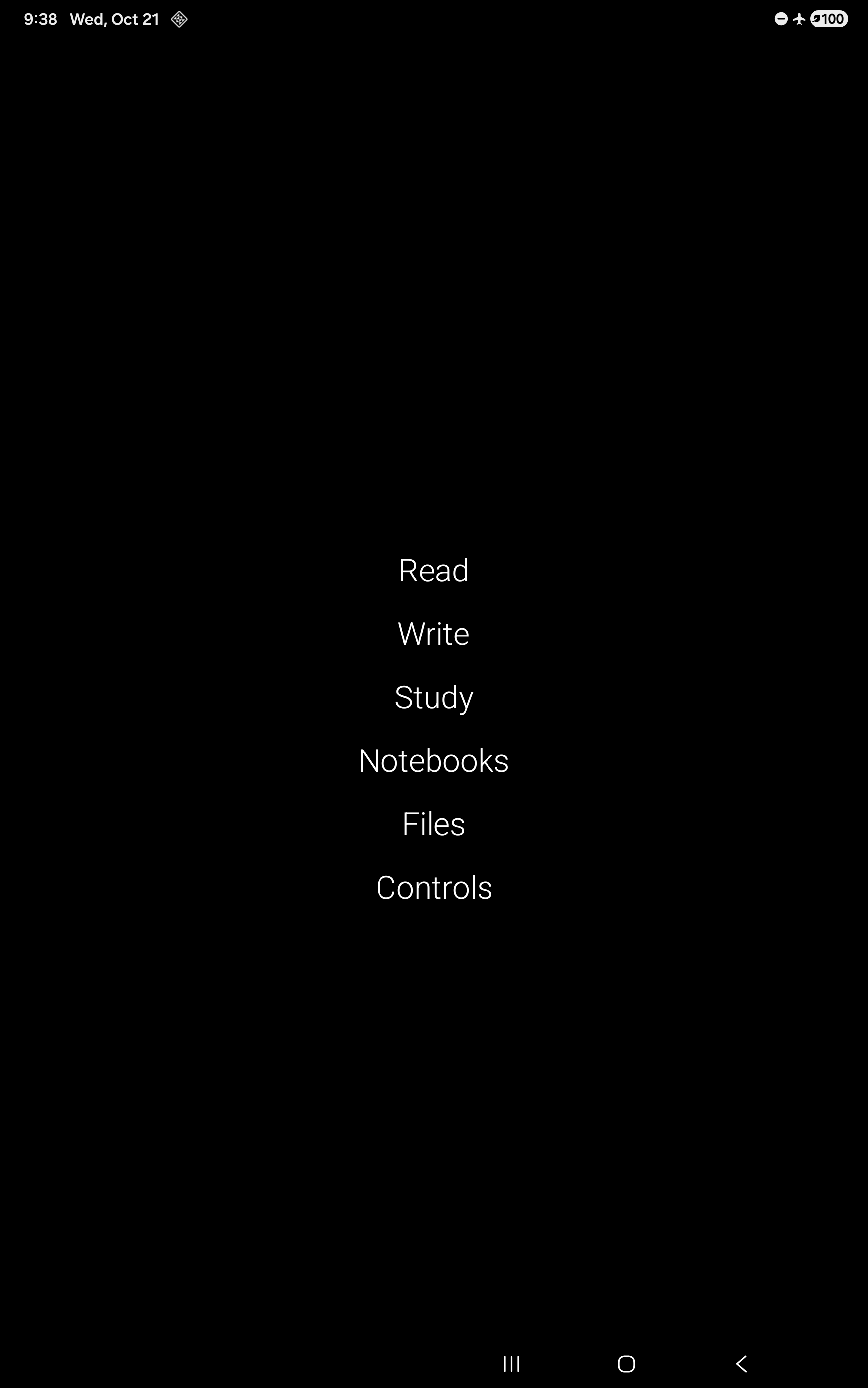
I kept the home screen dark and used larger text, with comfortable brightness. ReadEra uses sepia pages, and KOReader uses light pages. This is a visual preference: light pages use more power than black on the OLED panel. Eye Comfort Shield follows an 8 p.m. to 7 a.m. schedule without needing location access. Reading used 60 Hz. Unused wake gestures, always-on display and S Pen Air Actions were off, while pen input and screen-off memo remained available.
The network policy had to account for installing apps. Temporary Wi-Fi allowed the stores and their helpers to work; returning to Offline switched Wi-Fi off and restored background restrictions. The reader apps did not need internet access to open local files.
Flexcil had cached a video ad during sign-in. I removed its ad caches and kept its network access blocked. A static root-mounted hosts file also blocks domains from the AdAway list when I deliberately reconnect. Flexcil reopened without the video ad, though its own premium promotion remained. This did not unlock paid features, and domain blocking cannot remove every kind of in-app promotion. The blocklist stayed in place after I removed Flexcil.
I did not undervolt the tablet, replace its thermal controls or install a service that repeatedly killed other services. The audit found no sustained partial CPU wake lock in the samples I reviewed. There was no measured reason to add those changes.
Checking whether the writing could be recovered
Turning off cloud sync made local recovery worth testing before trusting the setup with real notes.
I created a disposable Samsung note containing text and a blue handwritten check mark. It was exported as .sdocx and PDF. I also highlighted a sentence in a generated PDF in KOReader, then copied the documents and its sidecar folder into a separate restore directory.
The file roundtrip matched byte for byte. Opening the restored note was a separate check: its text was selectable, and the original ink could be erased and restored with Undo. The restored PDF opened in KOReader with the highlight still present. The note’s re-exported PDF rendered identically to the original export.
That established something a backup completion message could not: the sample writing remained editable after recovery. It did not prove that every private app snapshot would restore onto another device, so portable exports stayed part of the plan.
What this still cannot change
The screen is still OLED. A black wallpaper and a lower refresh rate do not give it the display characteristics or standby behaviour of e-ink.
I have not measured a full-charge reading runtime or an overnight drain result yet. The tablet has controls to record the start and end of genuine unplugged sessions, and those tests are ready for later. Setup time on a USB charger cannot answer how it compares with a Kindle Scribe.
Root also did not remove the bootloader’s rollback restrictions. Samsung documents hardware rollback-prevention fuses that set a minimum acceptable bootloader revision. Getting UID 0 in Android did not provide a way around that or make a different operating system straightforward to install.
I blocked system and security updates on this device to keep the configured build stable. That also stops it receiving security fixes. Together with an exploit-based root path, it is a tradeoff I accepted for this mostly offline experiment. The locked bootloader does not mean the original security guarantees remain intact after rooting.
I still want to find out whether e-ink would suit me better. For now, I can do that comparison after spending time reading and writing on a tablet I already own. It opens my books and accepts the pen, and it gives me far fewer reasons to get pulled into something else.